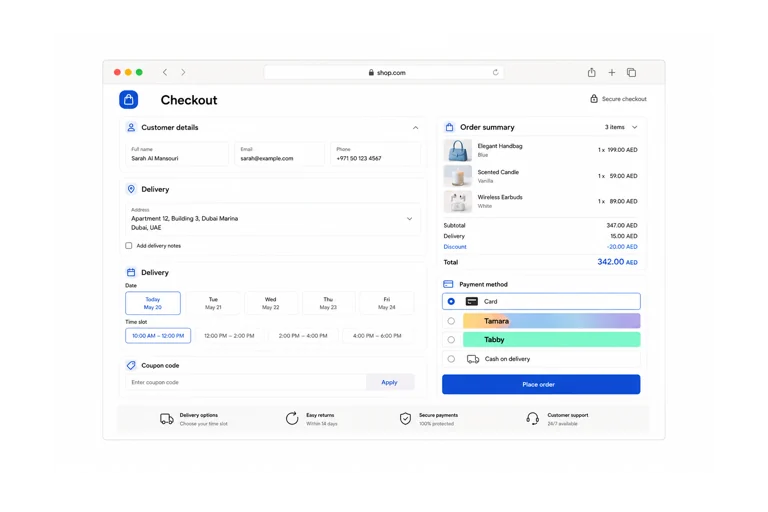
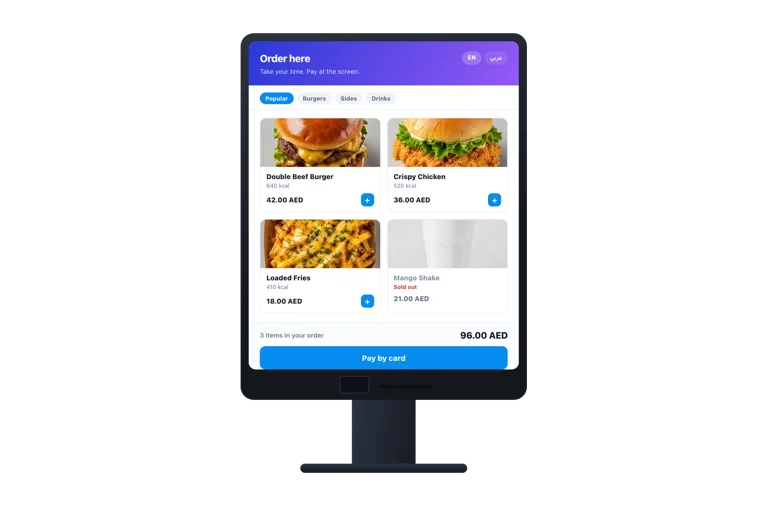
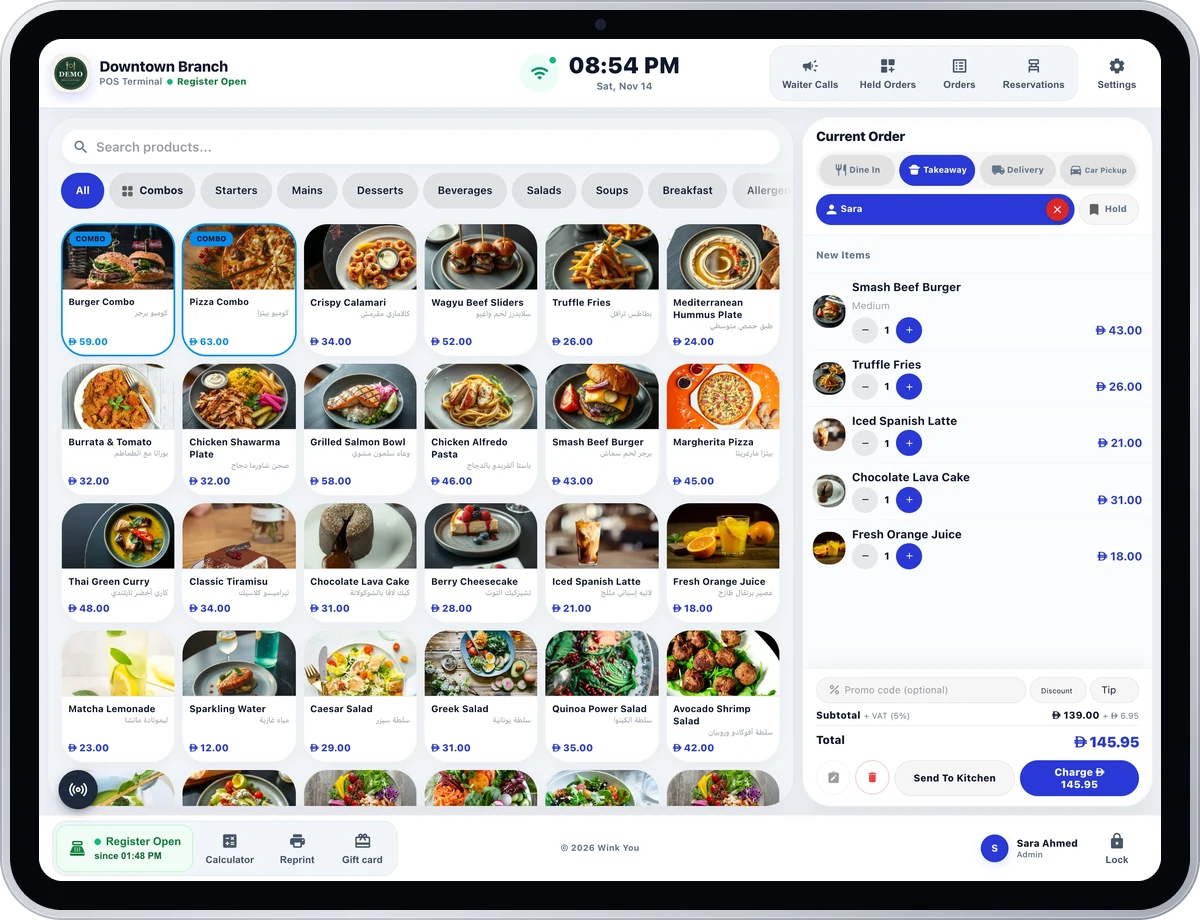
Take orders, split bills, and accept cash, cards, gift cards, or store credit from one till.
Get the Wink You POS app


Priced by branches and usage. See pricing for what each plan includes.
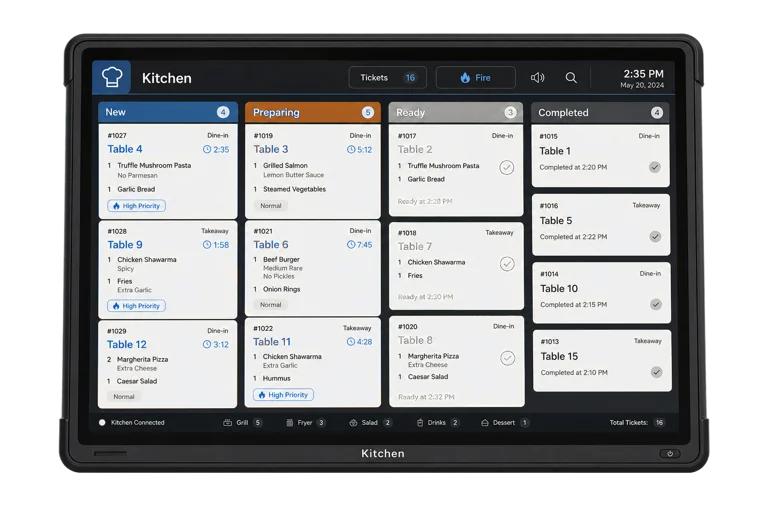
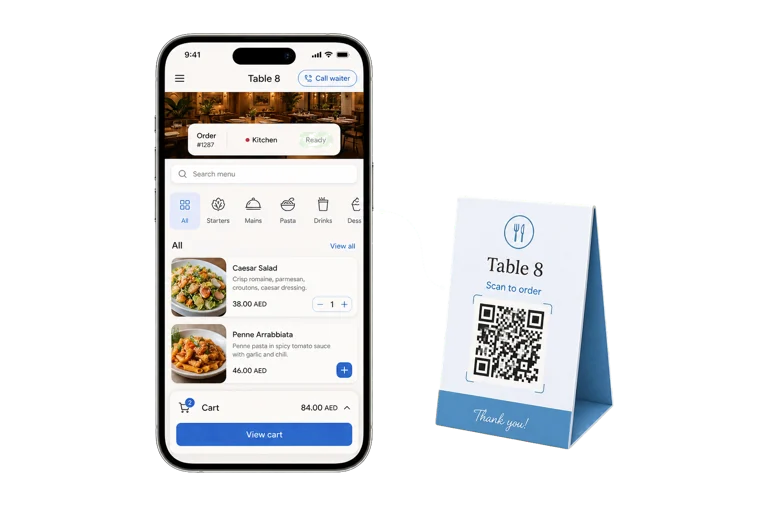
Wink POS is restaurant POS software that runs in a browser or as an app built for iPhone, iPad and Android, so you bring your own hardware instead of buying a locked terminal. It saves orders on the device when the internet drops and sends them as soon as it returns, prints to thermal receipt printers, shows the live cart on a second screen facing the customer, and sends every dine-in ticket straight to the kitchen display.
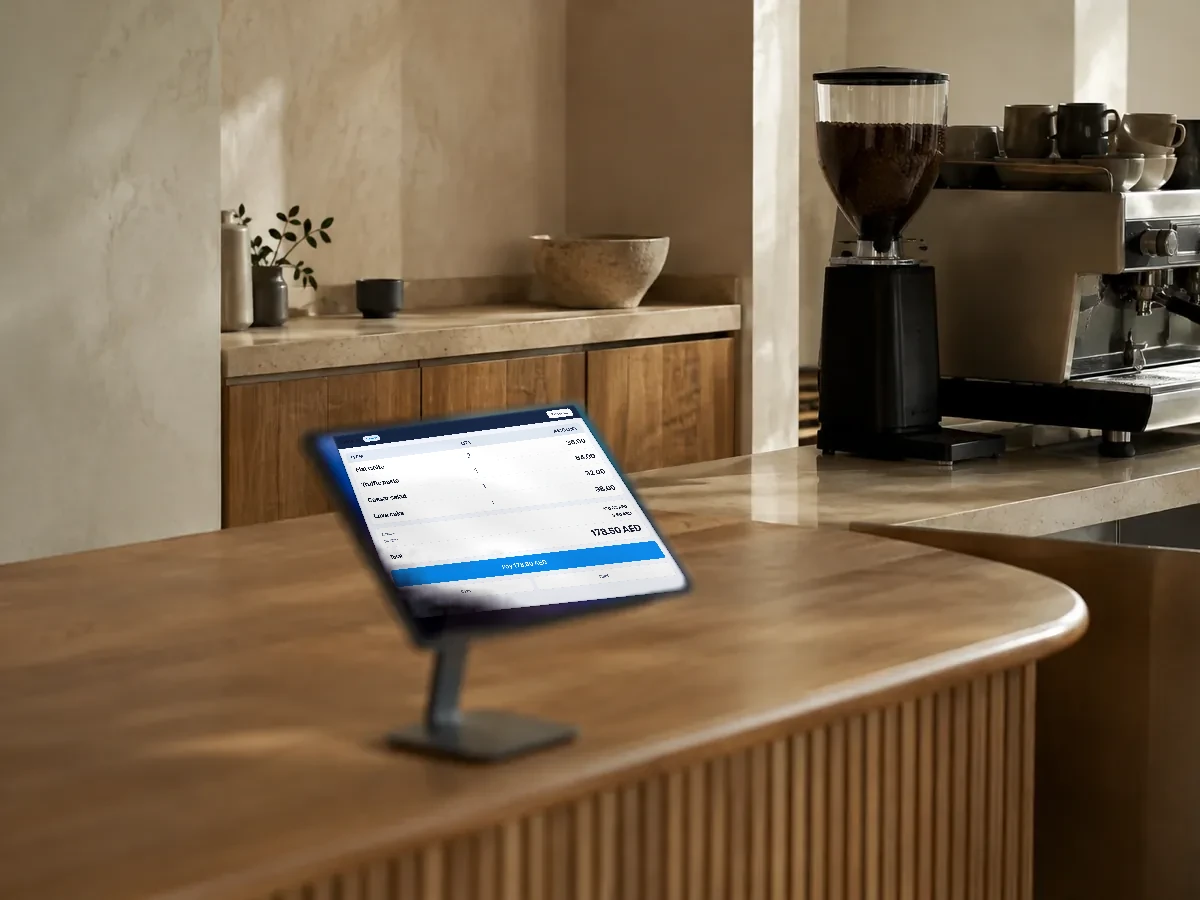
Split a bill by moving chosen items onto a separate bill, or split a table equally and take one share per guest. To pay one bill with two methods, choose Split at payment and mix cash, card, gift card and store credit.
Hold an order with a note and resume it when the guest comes back, or undo a cart cleared by mistake. Add a custom item that is not on the menu, such as a market price dish or an extra charge, and it prints by name on the bill and the kitchen ticket. Sell fixed combo meals, or build your own combos where the guest picks each part.
Each person signs in to the till with their own PIN. When a role does not include an action, such as a void, a refund, a manual discount or moving a table, a manager types their PIN to approve that one action, and a manager cannot approve their own discount.
Open the register with its opening balance, record pay ins, safe drops and petty cash, and count by denomination at close. Blind close hides the expected cash from cashiers so they count what is really in the drawer. Print an X report during the shift without closing, and the Z report prints when the register closes. Then hand the drawer over to the next cashier, who counts it and signs in with their own PIN.
Print receipts on a thermal printer over the shop network, by Bluetooth on iPad and Android, or through the computer’s print window for a USB printer, and print a receipt automatically after each sale. Pair a customer facing display with an 8 digit code: it shows the cart live, asks for a tip, and thanks the guest after payment.
When the connection drops, a yellow bar appears and orders sent to the kitchen are saved on the device, then sent by themselves when the internet returns. A card payment your own terminal approves is saved with its order and recorded when the connection returns, closing the register waits for the connection, and an order that cannot be sent is listed for you, so nothing disappears quietly.
Yes, for taking orders. Orders sent to the kitchen are saved on the device and sent automatically when the internet returns, so nothing is lost. A card payment your own terminal approves is saved with its order and recorded when the connection returns. Closing the register and changes to orders already sent wait until the connection is back.
You choose. We supply the hardware if you want it set up and ready: terminal, receipt printer, cash drawer and card reader. You are never locked to it, because Wink POS also runs in any modern browser and as an app built for iOS and Android, so an iPad or Android tablet you already own works just as well.
Yes. Orders are saved centrally, rather than on a single device, so a waiter can open a table on a phone and a cashier can close it at the counter.
Yes. Wink POS prints to thermal receipt printers, and it can show the live cart to the customer on a second screen while the order is rung up.
Open the order and tap Split Bill to move chosen items to a new bill, or select the table and set the number of guests to split it equally, then pay each share. At least one item stays on the original bill, and a delivery order cannot be split.
Thermal receipt printers on your shop network, Bluetooth receipt printers paired on iPad or Android, and USB printers through the computer’s print window. Kitchen tickets are printed from the kitchen screen, and bills and kitchen tickets should never share one physical printer.
A blind close hides the expected cash and the difference from the cashier while they count the drawer. The owner and managers still see both. Turn it on per branch with Always blind close for cashiers in Business Admin.
Yes, as a custom item with a name, a price and a reason such as market price or extra charge. It prints by that name on the bill, the tax invoice and the kitchen ticket. Roles without the permission need a manager PIN, and you can set a limit above which another manager must approve.
Open Reports on the drawer screen and choose Print X report to see the current shift without closing it. The Z report prints when you close the register, and past Z reports for the till can be reprinted from the same screen.
Only if their role includes it. By default voids, cancels, refunds, splitting or moving tables and manual discounts need a manager PIN. Give a role the permission in Roles and Permissions and it can do that action without asking.
Send a message or reach us on WhatsApp. We will show you the right setup for your restaurant or your store.