Filter each kitchen screen by POS counter, track preparation time, and tell the floor when food is ready.
Get the Wink You KDS app

Priced by branches and usage. See pricing for what each plan includes.
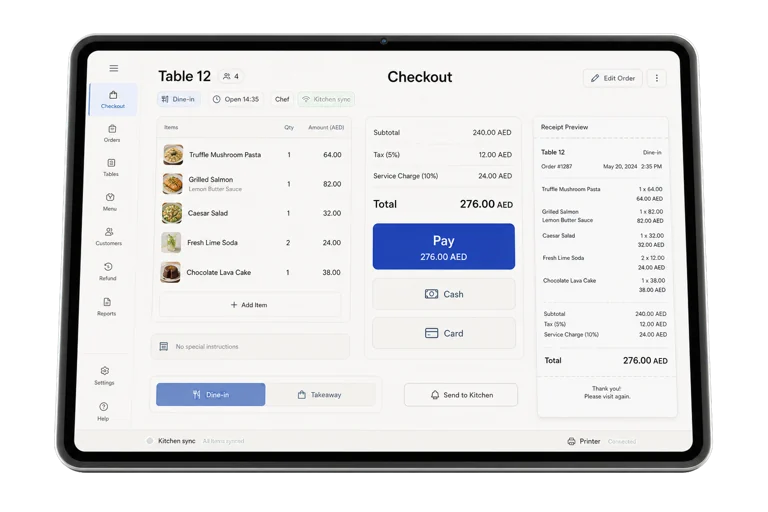
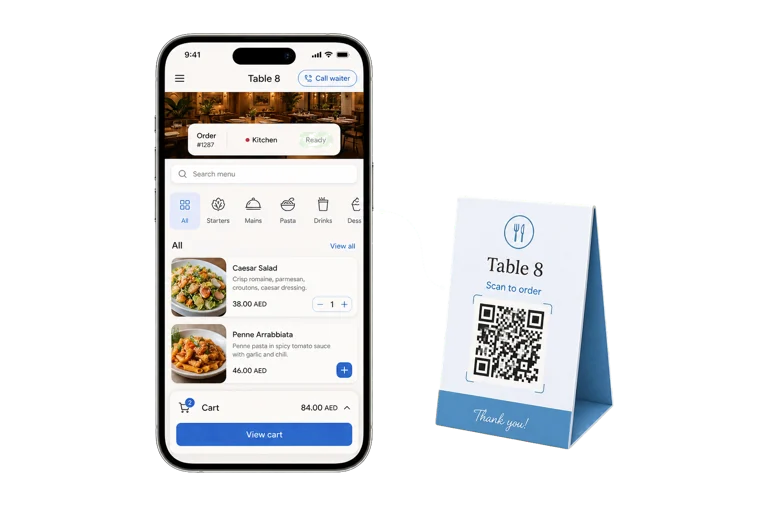
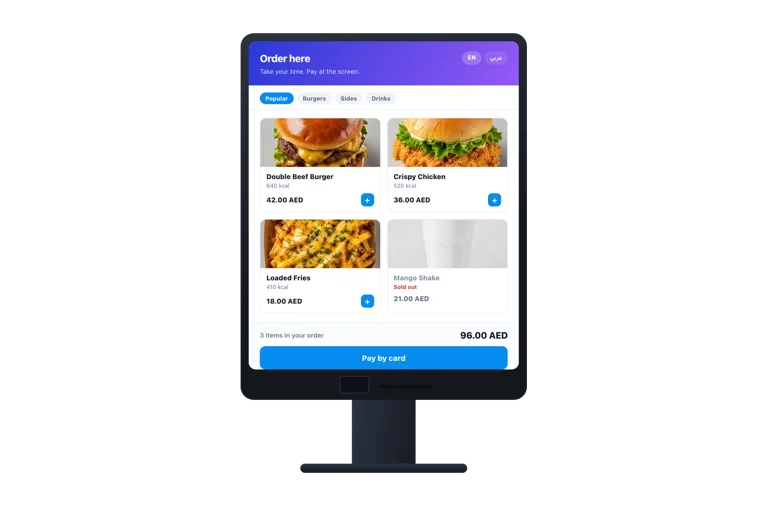
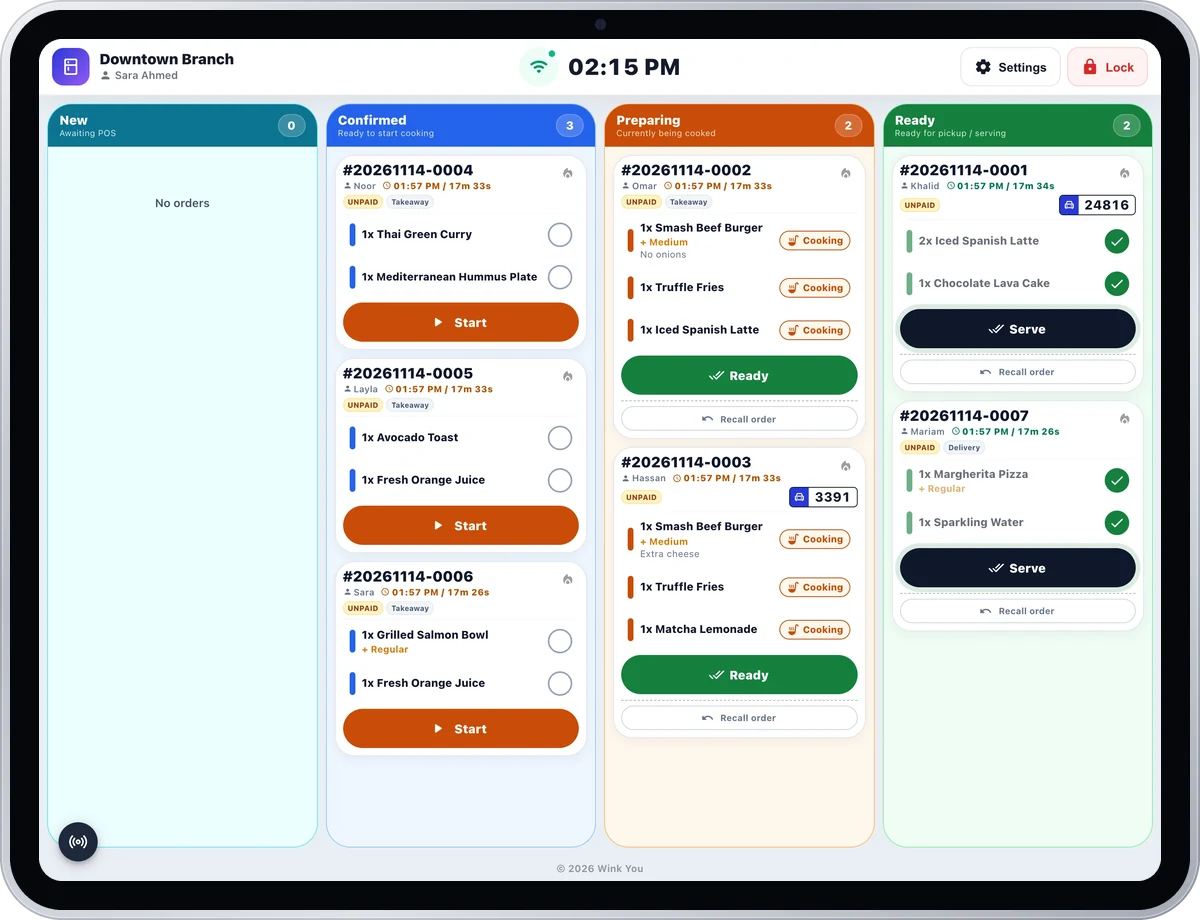
Wink Kitchen replaces the ticket printer with a screen. Orders arrive live from the till, the QR menu, the kiosk and the online store, and each screen can be filtered by the POS counter the order came from, so a counter that sells drinks can have its own screen. Each ticket carries its age, so anything sitting too long is visible from across the room, and bumping an item tells the floor it is ready.
Set up stations such as Grill, Bar and Desserts, tick the categories each one cooks, and pick the station on each kitchen screen, so drinks go to the bar screen and food to the kitchen screen. One dish can be sent to a different station than its category, and items from a category with no station go to the main station.
A ticket stays green until the branch preparation time, turns amber after it, and red and late after twice that time. Late orders are listed in a red bar and a knock repeats every 3 minutes while they wait. New orders chime, and preorders and catering arrive with a due time that counts down to when to start cooking.
Show orders in lanes per stage, as tiles with the oldest first, or in the All Day view that adds up every item still to make across orders. Bump one item or the whole ticket, recall an order marked ready by mistake, and bring back a served order shortly after it closed.
The kitchen screen prints tickets over the shop network, by Bluetooth on iPad, or online, and an edit prints a ticket with only the added lines. A label printer connected by Bluetooth, USB or the shop network prints labels for cups and bags automatically when an order is accepted, by order type, with an optional message from the guest. Each station prints only its own items or the full order.
When the kitchen runs out, mark the dish out (86) from the kitchen screen and it becomes sold out at that branch on the POS, the kitchen screens and the QR Digital Menu, then restore it when it is back. Kitchen staff can also record a prep batch of a sauce or dough from the screen when your plan includes inventory.
Yes. The screen and the printer are not exclusive, so you can run both while the team gets used to the display, then drop the paper when you are ready.
It reconnects on its own and pulls anything it missed, so a dropped ticket cannot go unseen because a tablet slept or the network blinked.
Yes, with kitchen stations. Each category is cooked at one station, such as Grill, Bar or Desserts, and each kitchen screen shows the station you pick on it. Without stations, every kitchen screen in a branch shows every item.
An order placed at the till or on the QR Digital Menu appears on the kitchen screen as a ticket with its items, options and notes. The cook starts it, bumps each item or the whole ticket when it is done, and the status goes back to the order so the floor knows it is ready.
Open the Kitchen Display app on the tablet or computer, sign in once with a manager account, choose the branch and register the screen. Orders from that branch then arrive by themselves, and kitchen staff sign in with their own PIN.
Yes. Connect a label printer from the kitchen screen by Bluetooth, USB or the shop network, choose the label size, and turn on automatic labels when an order is accepted. In Business Admin you choose which order types get labels and can let guests add a message.
Green means within the branch preparation time, amber means past it, and red means late, after twice that time. The preparation time is set per branch, 15 minutes unless you change it. Ready orders are never shown as late.
Yes. Tap Recall order on a ready order to send it back to preparing, or undo a single item. A served order can be brought back from Recently served within the last hour, as long as it closed less than 15 minutes ago.
Send a message or reach us on WhatsApp. We will show you the right setup for your restaurant or your store.