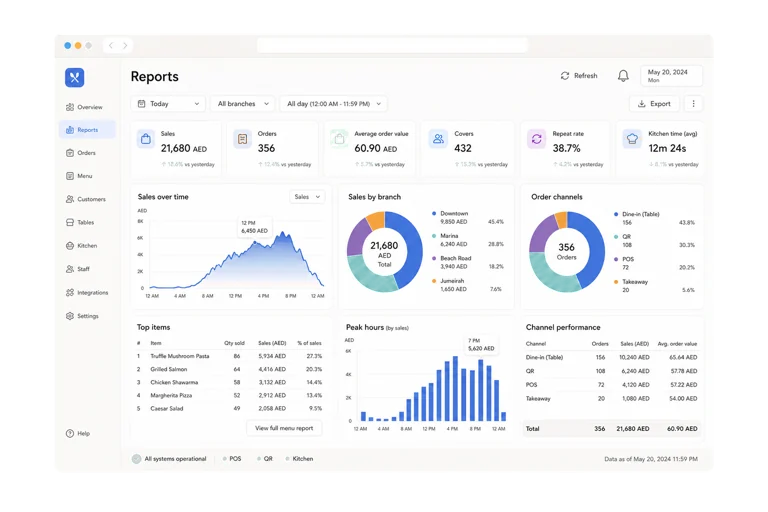
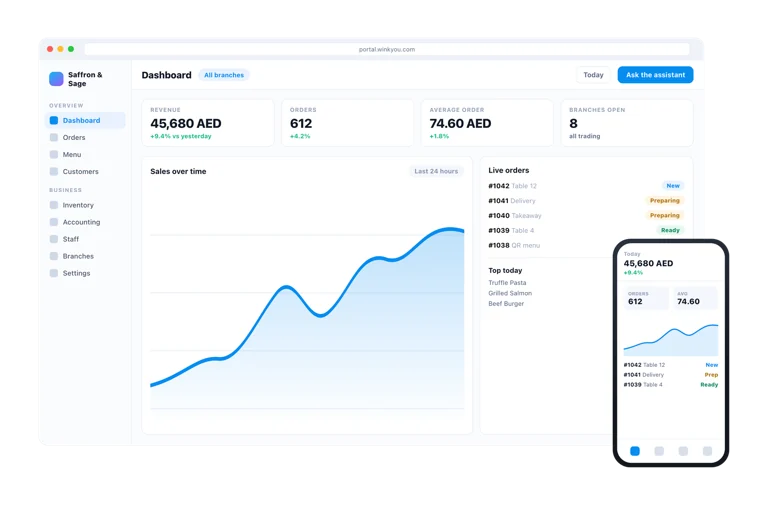
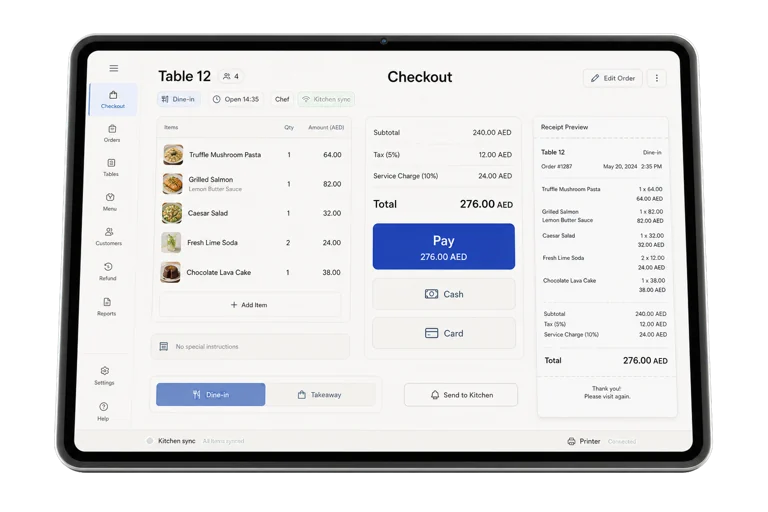
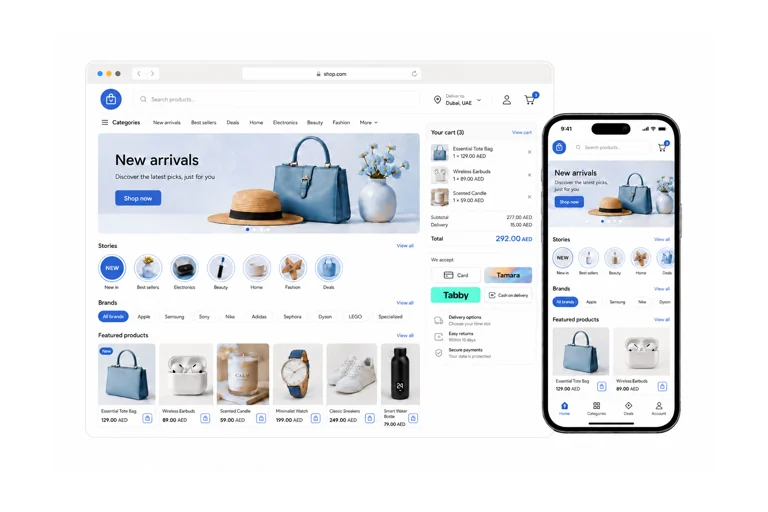
Track ingredients, counts, transfers, waste, and purchases. Get reorder alerts before essential stock runs low.
Priced by branches and usage. See pricing for what each plan includes.
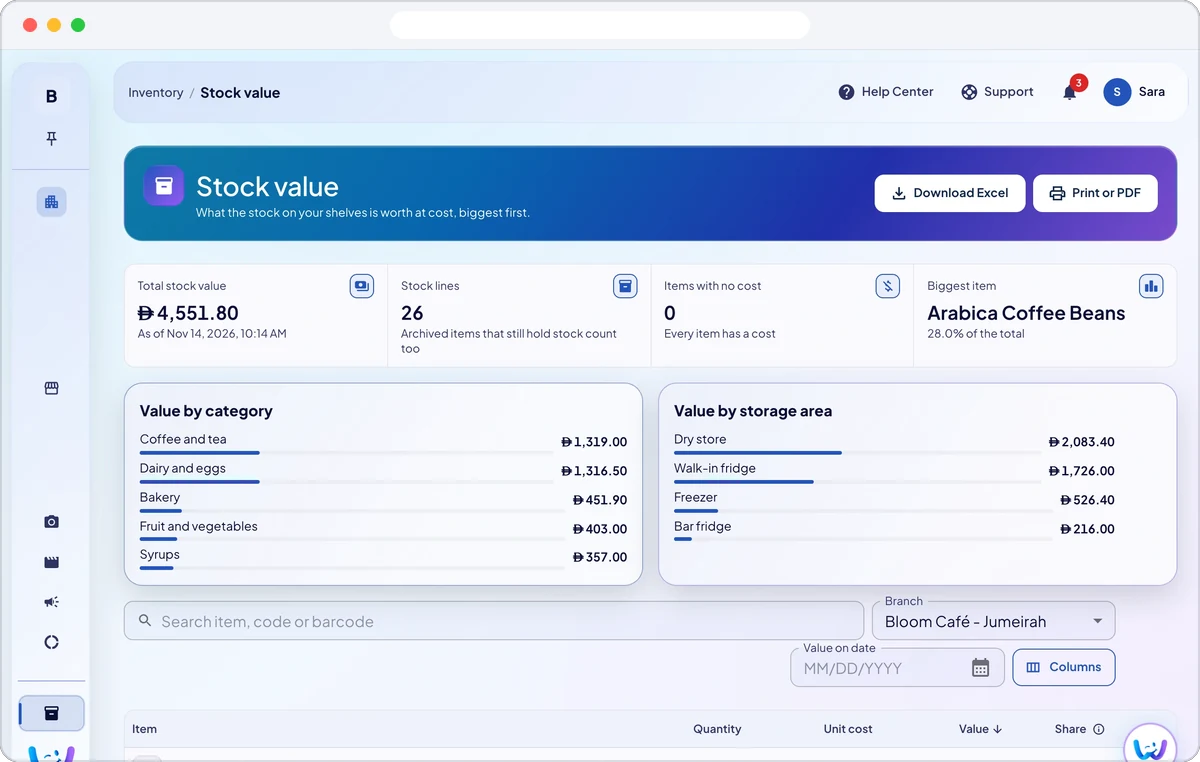
Wink Stock tracks what you hold and what it cost you. Selling a finished item draws down its ingredients through its recipe, so the shelf and the sale never disagree, and every movement is written to a ledger you can read back: sales, counts, transfers between branches, waste and receipts from a purchase order. When a line drops below its level it raises a reorder alert, which becomes a purchase order to a supplier, which becomes stock again when it is received.
Link each dish to a recipe and its ingredients come out of stock on every sale. The recipe list shows each dish’s cost, price, food cost percentage and profit per sale, using a chosen branch’s stock prices, and a recipe’s cost card shows the price you would need for a target food cost.
Start a stock count with a printed count sheet or on screen, in full packs plus loose units. In a blind count staff do not see the expected amount, then you review the big differences, missing and extra items, and send doubtful lines back for a recount before you finish.
Request stock from another branch or send it yourself, then receive it at the other end. Anything lost on the way is recorded as waste, so the two branches and the books still agree.
Log waste with a reason, such as expired, spoiled, damaged, made too much or staff meal, and it leaves stock at its cost. Items voided on the POS without going back to stock are added to waste automatically. Record a batch number and use by date for each branch’s stock, or on each line when a delivery is received.
Create a purchase order, send it for approval, then send it to the supplier by email, WhatsApp or a link they can confirm without an account. Receive it in full or in part, refuse damaged goods on delivery, return items to the supplier, and turn the received order into a supplier bill.
Reorder lists every item below its minimum, grouped by supplier with the best pack to buy, lets you compare suppliers and their price history, and creates one draft order per supplier. Prep batches turn ingredients into a ready item such as a sauce, syrup or dough, with the batch cost shown.
Yes, in the way each needs. A restaurant tracks ingredients behind recipes, a shop tracks the item on the shelf and its variants. Both draw from the same ledger and both raise the same reorder alerts.
The difference is posted as its own movement with a reason and the name of whoever counted, rather than silently overwriting the number, so a pattern of shrinkage is visible instead of hidden.
Link each dish to a recipe and give its ingredients a cost, from a purchase order or the stock item. The Recipes page then shows the cost, the food cost as a share of the price without VAT, and the profit per sale for every dish.
Create the recipe, add each ingredient with its quantity from your stock items, and link it to the product. From then on every sale of that product takes those ingredients out of stock automatically.
Open Count stock and start a count, optionally as a blind count. Staff count on screen or on a printed count sheet, you review the differences and ask for recounts, then finish the count. Each difference is posted as its own movement with a reason.
Yes. Send stock from one branch to another, or request it from the branch that holds it, and the receiving branch confirms what arrived. Goods lost on the way are added to waste.
Open Wastage, click Log waste, choose the branch and a reason, add the items and quantities, and save. The waste leaves stock at its cost, and you cannot waste more than the branch holds.
Yes. Each branch can store a batch number and a use by date for an item, entered on the item or when a delivery is received, and the stock list can show a Use by column. One date is kept per item per branch.
Once approved, send it by email, WhatsApp or both, using the contacts on the supplier card, or copy a link to share yourself or print it as a PDF. The supplier opens the link to view, print and confirm or reject the order, with no account needed.
Yes. Items below their minimum show as low stock, and Reorder suggests how much to buy from which supplier, filling up to the item’s maximum. You review the lines and it creates draft purchase orders for you to approve and send.
Send a message or reach us on WhatsApp. We will show you the right setup for your restaurant or your store.