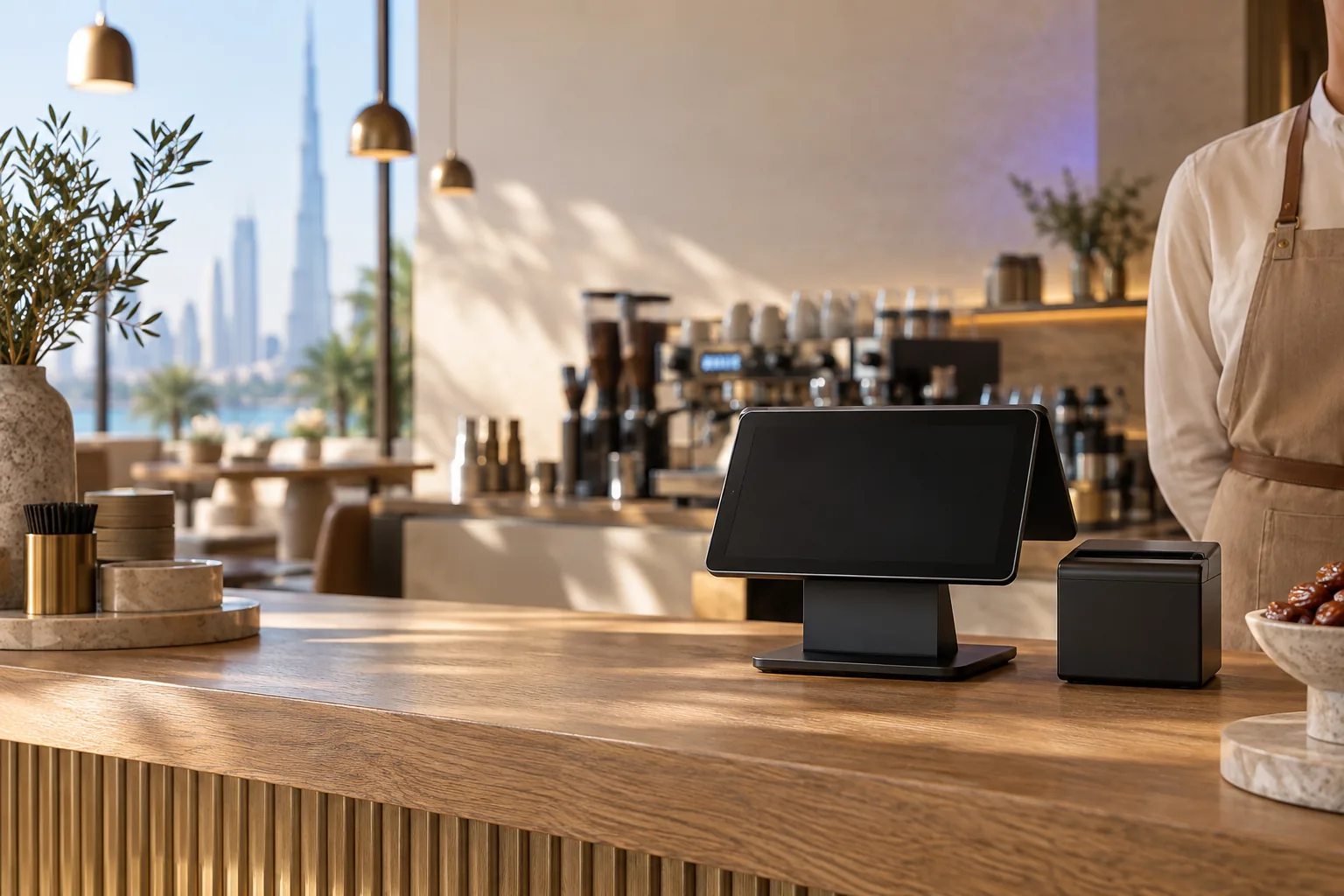
Why splitting the bill slows the till
A table of colleagues at lunch, a group of friends after football, cousins who all insist on paying. Splitting the bill happens at every Gulf restaurant, and when the POS cannot do it, the cashier does sums on a calculator, voids and re rings items, and the VAT invoices no longer match what each person paid. There are really three different requests hiding behind the words split the bill, and Wink You handles each one in its own way.
| What the guests want | Where to do it |
|---|---|
| Each person pays for what they ordered | Split Bill on the order (by items) |
| The table divides the total equally | Split Bill on the table (equal shares) |
| One bill, paid partly in cash and partly by card | Split as the payment method |
| Guests pay their share from their own phones | View Bill on the table QR code |
1. Split by items into separate bills
Tap Orders, then the order, then Split Bill. Choose the quantities that move to the new bill, for example one shakshuka and one orange juice for the second guest, and tap Create Split Order. A manager approves with their PIN unless your role is allowed to split tables. The table now has two bills, each with its own items and its own VAT, and each is paid separately with Take Payment. At least one item must stay on the original bill, and a delivery order cannot be split.
2. Split the table equally
Tap Select Table and pick the table. Under Split Bill, tap plus until it shows the number of guests, and each share appears. If three friends owe 144, each share is 48. Tap Pay 1 share for each guest who pays alone, in cash or by card, and the bill shows how many shares are paid and what is left. When the rest want to pay together, tap Pay whole table for the remainder.
3. One bill, more than one way to pay
Sometimes nobody wants separate bills; one person simply pays part in cash and the rest by card. Open the order and tap Charge, then under Other ways to pay tap Split. On each part choose the method: Cash, Card Terminal, Gift Card, Customer Credit or Pay with points. Tap Half on the first part and Rest on the second, or Split in 2, Split in 3 or Split in 4 to share evenly, and you can still type a different amount on any part. When the bar says Balanced, tap Charge. Add payment method adds a third part. Both payments are saved on the order and show under Payments.
4. Guests split from their phones
When guests scan the table’s own QR code, the menu shows View Bill with every order at the table, the total, the VAT and what is left to pay. With online payment switched on, they tap Pay Full Bill, or Split Bill to pay an equal share or an amount they type, add a tip if they wish, and pay by card. Payment on this screen is by card only; anyone paying cash pays your staff as usual. The buttons only appear on a table code, not a general menu code, and only when an online gateway is set up in Payment Methods.
Tips for the floor team
- Ask the table early whether they want separate bills or an equal split. Splitting by items is easiest before the first payment is taken.
- For large groups, split by items into a few bills (one per family or per company) and then use Split as the payment method on any bill that is paid two ways.
- Give the right staff the right to split tables. Otherwise every split waits for a manager PIN, which is fine for control but slow at the lunch rush.
- Put table QR codes on every table if you want guests to pay their own share by card without waiting for the card machine.
Every part of a split is saved with its own payment method on the order, so the payments list shows exactly what came in as cash, by card, from a gift card, from customer credit or as loyalty points. That keeps the end of day count simple even on the busiest night.
Safe when the connection drops
If the internet drops while a share or the whole table is being paid, the till says the payment may already be saved and asks you to tap Confirm again to check. It checks the same payment and never records it twice, and for card payments it reminds you not to run the card again. That protects both the guest and your cash count.
Frequently asked questions
How do I split a bill between two people on the POS?
If each pays for their own items, use Split Bill on the order. If they share the total equally, use Split Bill on the table and set it to 2.
Can one guest pay with cash and card together?
Yes. Choose Split under Other ways to pay and enter the cash part and the card part until it says Balanced.
Why does splitting ask for a manager PIN?
Splitting by items moves lines between bills, so it needs a role that can split tables. Anyone else gets a manager to approve with their PIN.
Can guests split the bill themselves?
Yes, from View Bill on the table QR code, when online payment is on. They pay their share by card.
Can part of the bill be paid with a gift card or points?
Yes. With Split as the payment method, each part can be Cash, Card Terminal, Gift Card, Customer Credit or Pay with points, so a guest can use what is left on a gift card and pay the rest in cash.
Can a delivery order be split?
Not into separate bills. A delivery order can still be paid with more than one method using Split.
Splitting is built into the till: winkyou.com/products/point-of-sale. Watch each method at winkyou.com/support/pos/how-to-split-the-bill, winkyou.com/support/pos/how-to-split-a-table-bill-equally and winkyou.com/support/pos/how-to-take-a-split-payment.