Manage roles, schedules, face-verified attendance, and push-to-talk voice across the branch.
Priced by branches and usage. See pricing for what each plan includes.
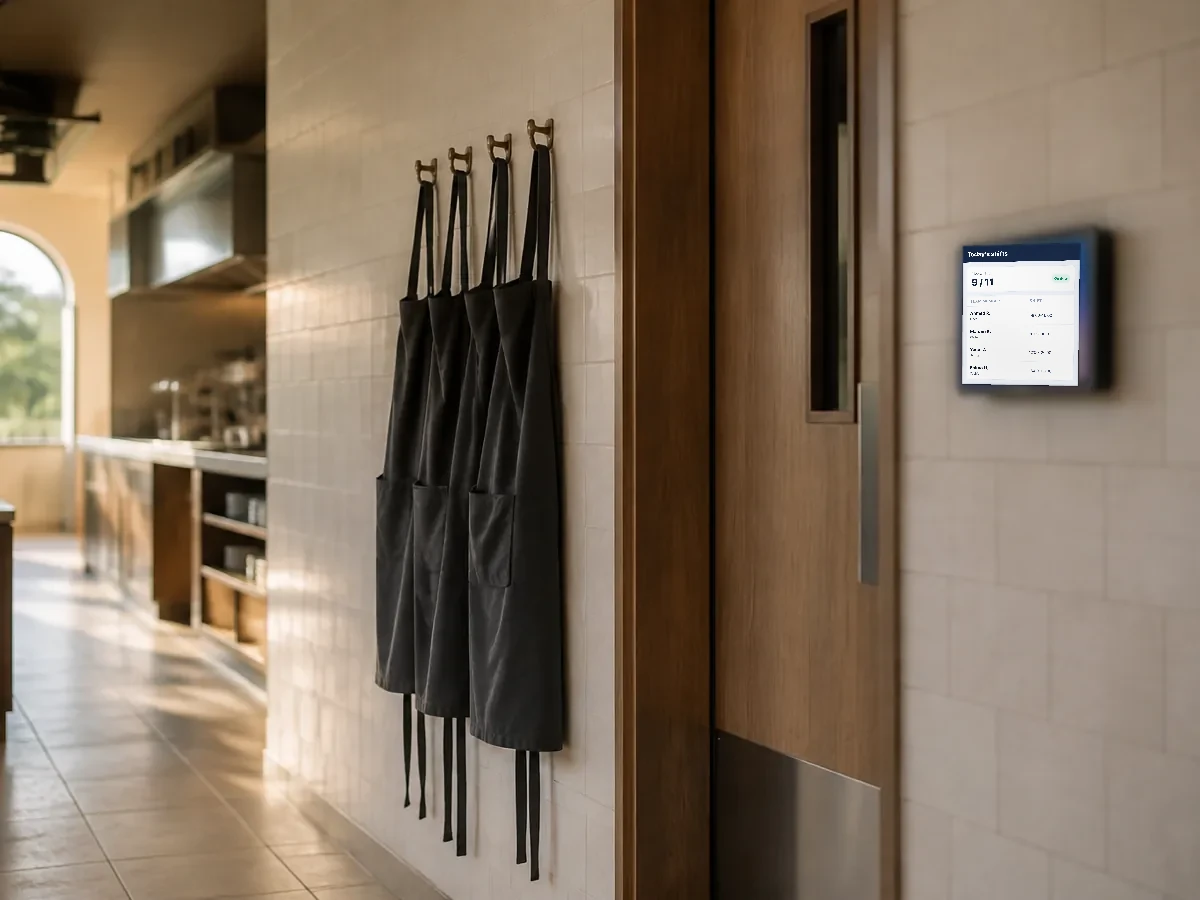
Wink Team covers the people side. Each person gets an account with a role that decides exactly which screens and actions they can reach, a rota that says when they work, and a clock-in that ties the shift to a real person: the tablet at the back door takes a photo and compares it with the employee’s registered photo, so a PIN cannot be handed to a colleague. Those photos are private files, held in an encrypted store and reachable only through a short-lived link after checking access permissions, never in public image storage.
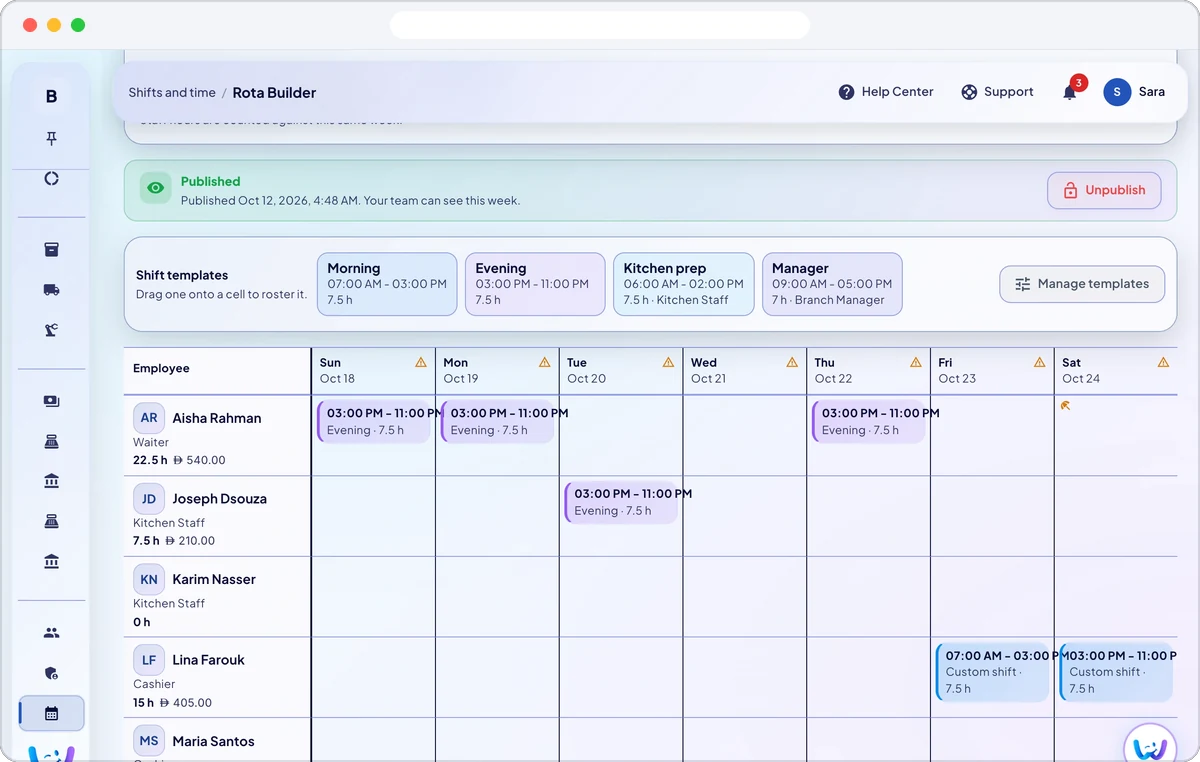
Build the weekly rota from shift templates, copy last week and publish it, and staff see their shifts in the staff app. Post an open shift for anyone free to claim, and approve the swaps and give aways staff agree between themselves. Staff can also set the hours they are available.
Staff clock in on their phone or a wall tablet with a live selfie matched against their enrolled photo, and the app can check they are within an allowed distance of the branch. Breaks are taken by type, unpaid break minutes come off the paid hours, and a clock in with no planned shift shows as unplanned.
Open a pay period per branch, a manager submits it, the owner approves and locks it, and Export payroll gives a CSV with each person’s regular, overtime, night overtime and rest day hours, base and premium pay. Overtime rules, break types and public holidays are set in your work rules.
Leave types start from UAE labour law and are yours to change, each with its default days a year, paid or unpaid, and whether it needs a document such as a sick note. Staff ask for time off in the staff app, you approve it on the Leave page, and balances and who is off are shown in one place.
Give each branch opening, closing or any time checklists by role, with tasks that must be done and tasks that need a photo. Staff tick them off on the staff app once they clock in, and the completion report shows what was done.
In private encrypted storage with no public address. Guessing a link cannot open a file. Access links expire within minutes and are provided only after checking that the person has permission to view the file.
Yes. Permissions are per role and per action, so a cashier can take payment and be unable to open reports, edit prices, void a paid order or see another branch.
Switch on Require face check for the branch, so every clock in needs a live selfie that matches the person’s enrolled photo, and Require location, so they must be close to the branch. A shared PIN is then not enough to cover for someone who is not there.
Open Shifts and time, build the week from shift templates or copy last week, check the rota warnings, and publish it. Staff see their shifts in the staff app, and open shifts can fill the gaps.
Yes. A staff member offers a swap or gives a shift away in the staff app, a colleague accepts, and a manager approves it. Nothing on the rota moves until it is approved, and an overlapping shift is refused.
Set up your leave types and each person’s balance, then decide requests on the Leave page. Staff send requests from the staff app with the dates, a reason and a document when the type needs one, and you can see who is off on any day.
Yes. Approved timesheets feed the payroll run in Wink Finance, which uses each person’s pay rate to work out basic pay, overtime and net pay. If you pay salaries outside Wink You, export the approved hours as a CSV instead.
Yes. The staff clock in app runs on their phone or on a wall tablet. When the branch requires it, it checks their face and their distance from the branch before clocking them in.
Yes. Published shifts, open shifts, leave requests and the checklist for the current shift all appear in the staff app, and the checklist shows on the Today screen once they clock in.
Send a message or reach us on WhatsApp. We will show you the right setup for your restaurant or your store.