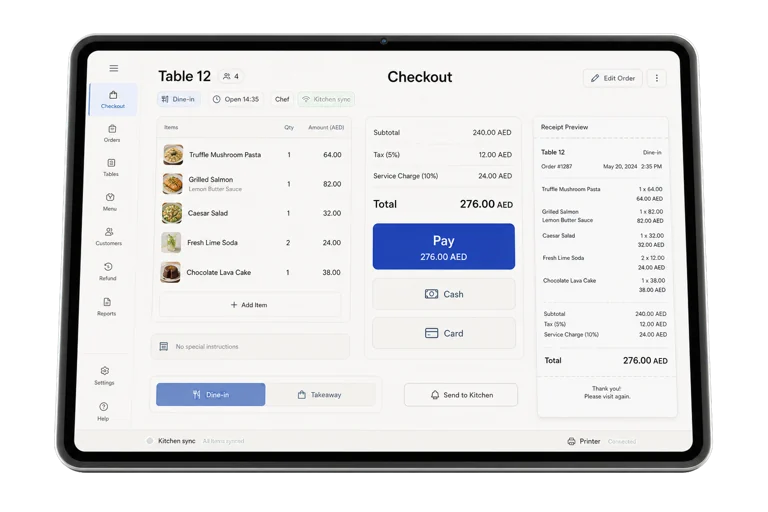
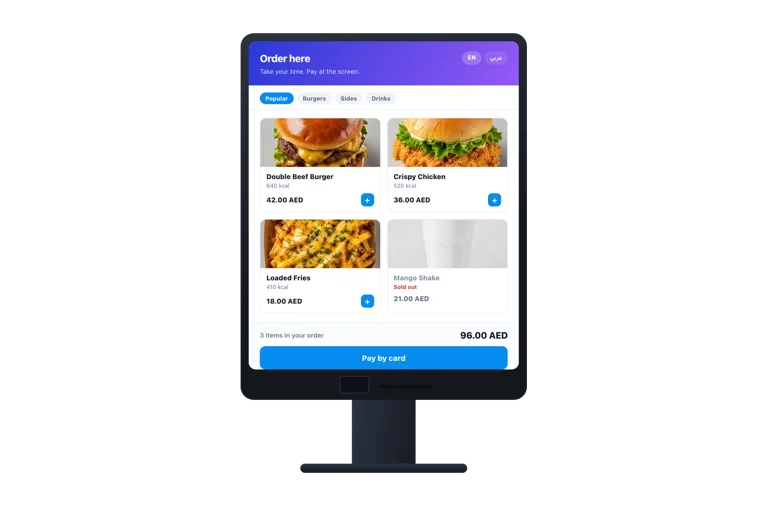
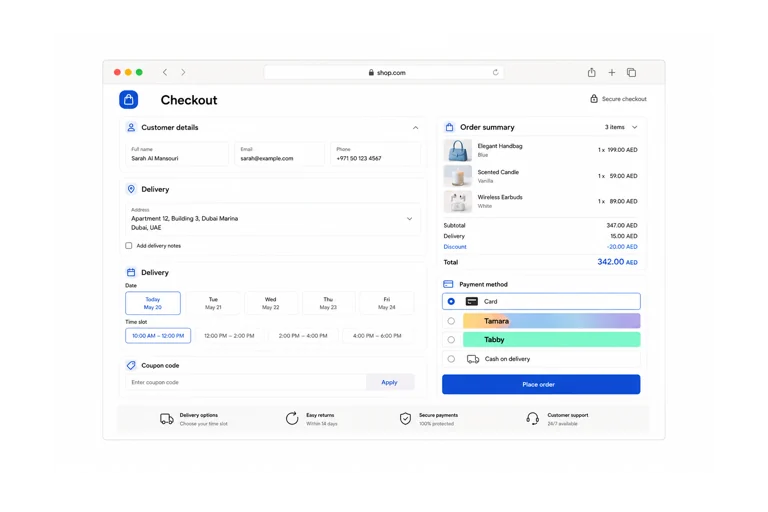
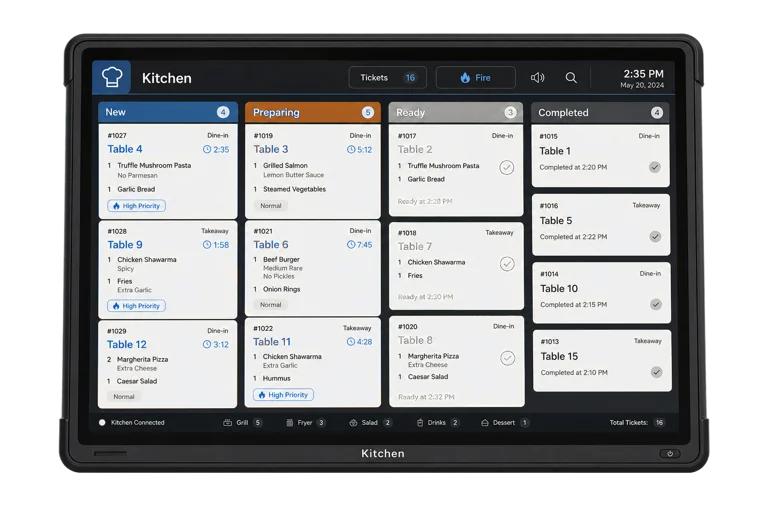
Guests browse your menu in Arabic or English, check allergens, call a waiter, split the bill, and pay on their phones.
Priced by branches and usage. See pricing for what each plan includes.
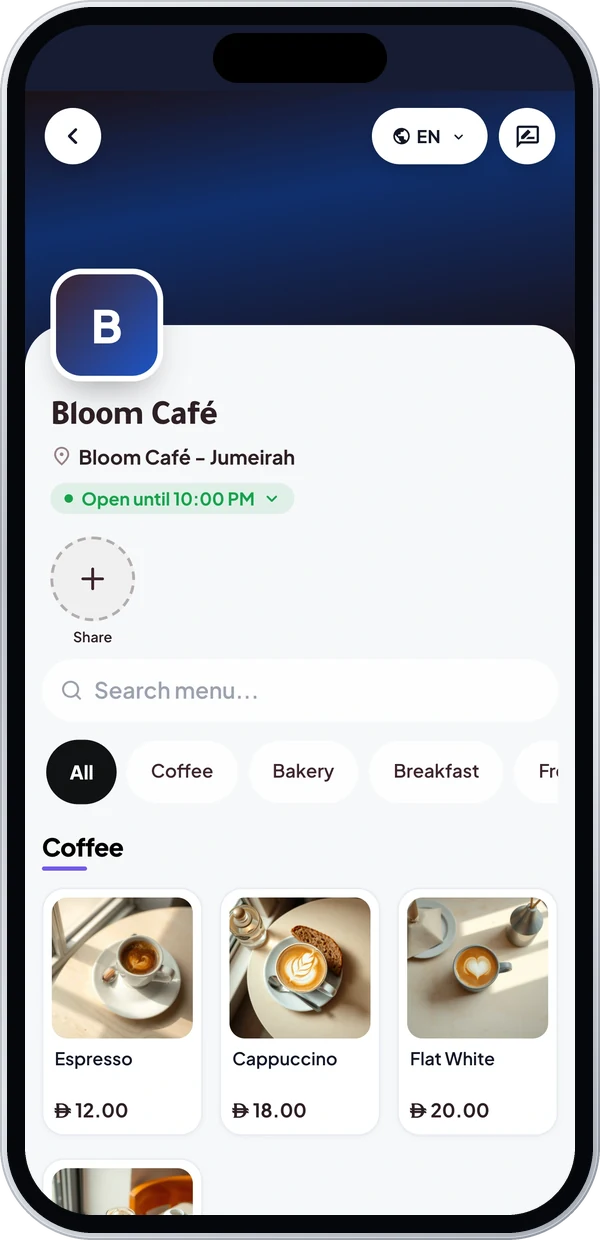
Wink Menu, the Wink You QR menu, is the page a guest lands on after scanning the code on the table. It shows your live menu with photos, prices, allergens, calories and tags, hides anything that is out of stock, and lets the guest order straight to the kitchen if you turn ordering on. It also carries the floor: table assignment, reservations, the waitlist, and the call waiter button.
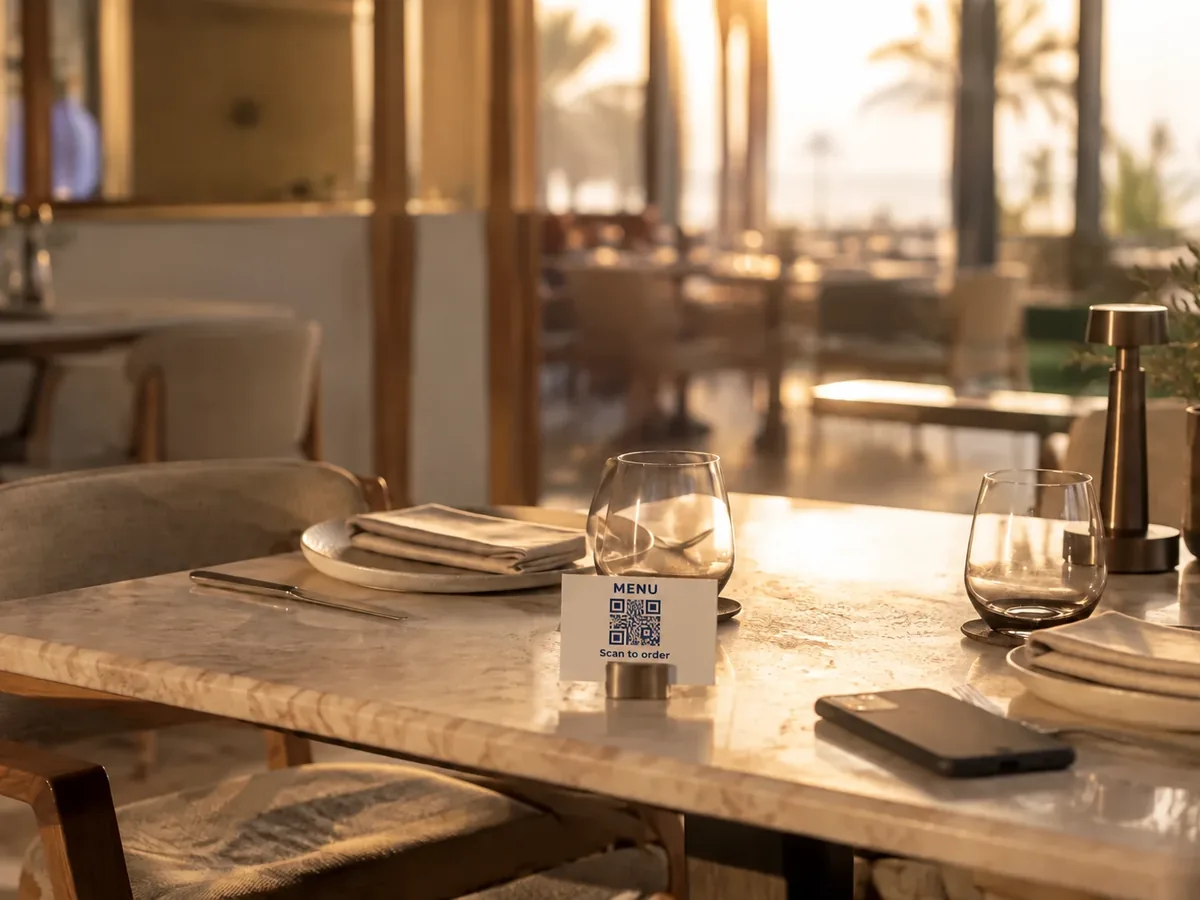
A table code turns the order into a dine in order for that table. Without one, guests choose pickup, car pickup with their plate number and car colour, delivery with a pin on the map, or a preorder for a chosen day and time up to 15 days ahead, then follow the order live. Delivery and preorders need online payment.
Scanning the table’s own code shows View Bill with every order at the table, the VAT and what is left to pay. With online payment on, guests pay the full bill or split it into equal shares or an amount they type, and add a tip. Guests paying cash pay your staff as usual.
Show allergen icons, calories and nutrition on each dish, with tags such as spicy, vegan or new, and let guests filter the menu by diet or allergen. Mark a dish sold out per branch and it leaves the menu at once, or stop QR orders automatically for dishes whose recipe stock has run out.
Guests book a table from the Reservation button with their name, party size, date and time, up to 90 days ahead and inside your opening hours, and staff are notified and see it on the POS. Start the live waitlist and guests join the queue from their phone, staff add walk ins, and seating a party tells the guest their table is ready. The call waiter button alerts the POS and Business Admin.
Track a catering event from inquiry to quote, confirmation and the day it is served, with the guest count, the menu items and special requirements. Bill the event as a real sale with the branch VAT, take a deposit by card terminal or cash, and take the rest on the day.
The menu uses the Cards theme with photo cards in two columns, and you pick from 20 ready made colour sets. Add banners on a schedule, a promo popup, stories and your social links. Turn on Wink Waiter and it suggests dishes to guests inside the menu and can add them to the cart.
No. The code opens a web page in the phone’s browser. There is no app, no account and no sign up before somebody can read the menu.
Yes, and that is the default. Ordering, feedback and the call waiter button are separate switches you turn on when you want them.
Yes. Both names mean a menu guests open by scanning the code on the table with their phone camera. In Wink You it is the QR Digital Menu, and you choose whether it only shows the menu or also takes orders.
Add your categories and products with photos and prices in Business Admin, add your tables, then open QR Codes and click Generate Table QRs to make a code for every table. Print the codes for the tables, and each scan opens your menu for that table.
From the Reservation button on your QR Digital Menu welcome page. The booking reaches you as pending, staff get a notification and an email, and you confirm it and seat the guests when they arrive. Bookings are taken up to 90 days ahead and inside the branch opening hours.
Start the waitlist for the branch and guests join from the QR menu and watch their position, while staff add walk ins with a party size and an estimated wait. When a table is free, Seat notifies the guest that their table is ready and everyone behind moves up.
Yes. Each dish can carry allergen icons, calories and nutrition, plus tags such as spicy or vegan, and guests can filter the menu by diet or allergen before they order.
Yes. Mark a dish sold out for a branch from Products, the POS or the kitchen screen and it stops being orderable on the QR menu at once. You can also stop QR orders for dishes whose recipe stock has run out.
Yes. Without a table code, guests can choose Car and enter their plate number and car colour, so staff know which car to bring the order to.
Yes. Every business uses the Cards theme, and you choose one of 20 ready made colour sets in QR Digital Menu Settings, with a live preview before you save. Your own colours cannot be typed in, so pick the closest set.
Send a message or reach us on WhatsApp. We will show you the right setup for your restaurant or your store.