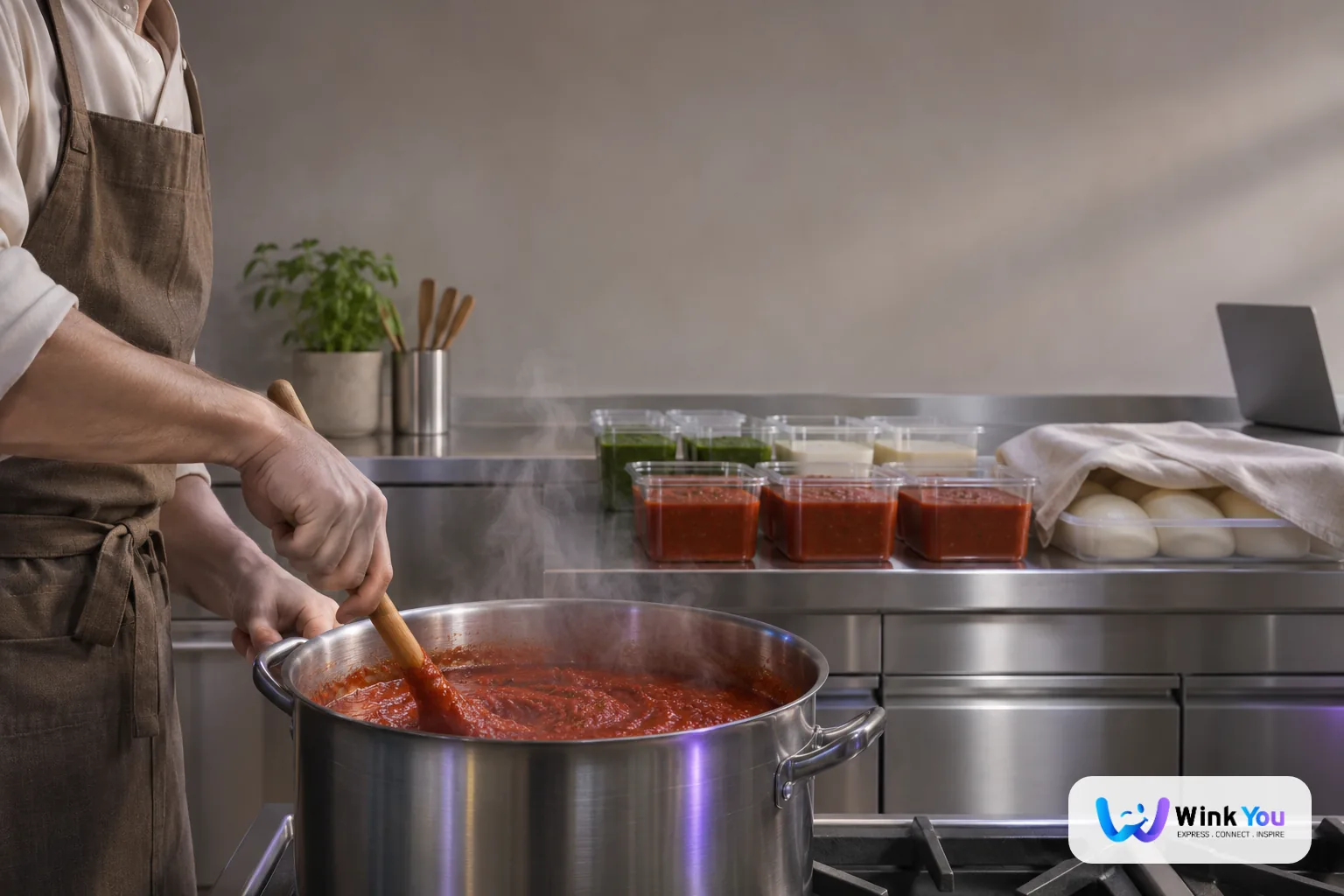
The problem: prep disappears from your numbers
Every morning a kitchen turns tomatoes, onions and spices into a pot of sauce, flour into dough, sugar and vanilla into syrup. The raw ingredients leave the shelf, but nothing records where they went. The sauce then goes into a dozen dishes, so the cost of those dishes is a guess, and stock of the raw items drifts away from what is really there. Batch preparation software records each batch as a real step: ingredients out, prep item in, with a cost attached.
This matters most where prep is a large share of the work: cafes with house syrups and cold foam, bakeries with doughs and fillings, shawarma and grill counters with marinades and garlic sauce, and central kitchens that prepare for several branches. In each case the prep item is what the menu really sells, so its cost and its stock need to be as visible as the raw ingredients.
Step 1: create a prep recipe
- Open Recipes and click New Recipe.
- Choose A prep batch we keep in stock and type the Recipe Name, for example Garlic sauce.
- Under It makes, find the prep item or type a new name to add it to stock, and pick what it is counted in, such as litres or kilos.
- Set One batch makes, the amount one batch adds to stock.
- Click Create and add ingredients and add what one batch uses.
Then add the prep item as an ingredient in your dish recipes, just like any other stock item. A shakshuka recipe can use 120 millilitres of shakshuka sauce, and its cost card will include the real cost of that sauce.
Step 2: record a batch in Business Admin
Open Inventory, then Make a prep batch, or open the prep recipe and click Make a batch. Under Choose a prep recipe pick the recipe, then enter How much did you make? in batches or in the item's own unit, for example two batches, so three litres. Below you see what comes out of stock and what you have now. Batch cost shows what this batch cost you and the cost of one litre. If it was not made today, change When was it made?, add Notes if needed, and click Confirm batch. The prep item is now in stock and the batch is listed under Made today.
Step 3: or record it from the kitchen screen
Cooks do not need the dashboard. On the kitchen screen, tap Settings, then Make a prep batch. Pick the prep recipe, choose how many batches you made, and the screen shows how much goes into stock and each ingredient that comes out. Tap Confirm batch. If it was a mistake, tap Undo right away; otherwise tap Done and go back to your orders. This option shows on the kitchen screen when your plan includes inventory.
When an ingredient is short
If stock says you do not have enough of an ingredient, the batch is blocked until you lower the amount, or you tick Make it anyway and record what is missing. That second choice is useful when the shelf is right and the system is behind, for example a delivery that has not been received yet. The recipe also warns Not enough to make one batch when even a single batch cannot be made from what is recorded.
What is and is not included
- Included: prep recipes, batch cost and cost per unit, batches recorded from Business Admin or the kitchen screen, Undo while the prep item is still unused, and prep items used in dish recipes.
- Each prep item is made by one prep recipe, and a prep recipe is not sold on the menu directly.
- Recording needs the Manage stock, purchase orders and counts permission or Refill and adjust stock. Kitchen staff can record from the kitchen screen.
- Not included: Wink You does not forecast how much to prep or schedule batches for you. Your team decides what to make; the app records it and keeps stock and cost right.
Tips for getting it right
- Start with the prep you make every day: sauces, doughs, syrups and marinades. Those are where most raw stock disappears.
- Set One batch makes to what the pot really yields after cooking, not the total of the raw ingredients, because water cooks off and trim is thrown away.
- Ask cooks to record the batch from the kitchen screen as soon as it is finished, so stock matches the fridge before service starts.
- Count prep items in your stock takes like any other stock item. A gap there shows prep that was made but never recorded.
- Watch the cost per unit on each batch. If a sauce costs more than you thought, every dish that uses it costs more too.
Frequently asked questions
How do I record that we made a batch of sauce?
Use Inventory, then Make a prep batch in Business Admin, or Settings, then Make a prep batch on the kitchen screen. Pick the recipe and the number of batches, then confirm.
How do I cost a sauce that goes into many dishes?
Make it a prep recipe, then add the sauce as an ingredient in each dish recipe. Each dish takes the sauce at its cost per unit, which comes from the ingredients of the batch.
Can I undo a batch recorded by mistake?
Yes, while the prep item it made is still unused. On the kitchen screen tap Undo straight after confirming; in Business Admin use Undo on the batch under Made today.
Do prep items show in stock and in counts?
Yes. A prep item is a stock item, so it appears in Stock items with its quantity and cost, and you count it in stock takes like anything else.
Make prep part of your stock
Read more at winkyou.com/products/inventory and winkyou.com/products/kitchen-display. Guides: winkyou.com/support/inventory/how-to-make-a-prep-batch and winkyou.com/support/kitchen-display/how-to-make-a-prep-batch-on-the-kitchen-screen.